

How Can You Focus on Bigger, Strategic Thinking?
Have AI Do Your Tedious Tasks

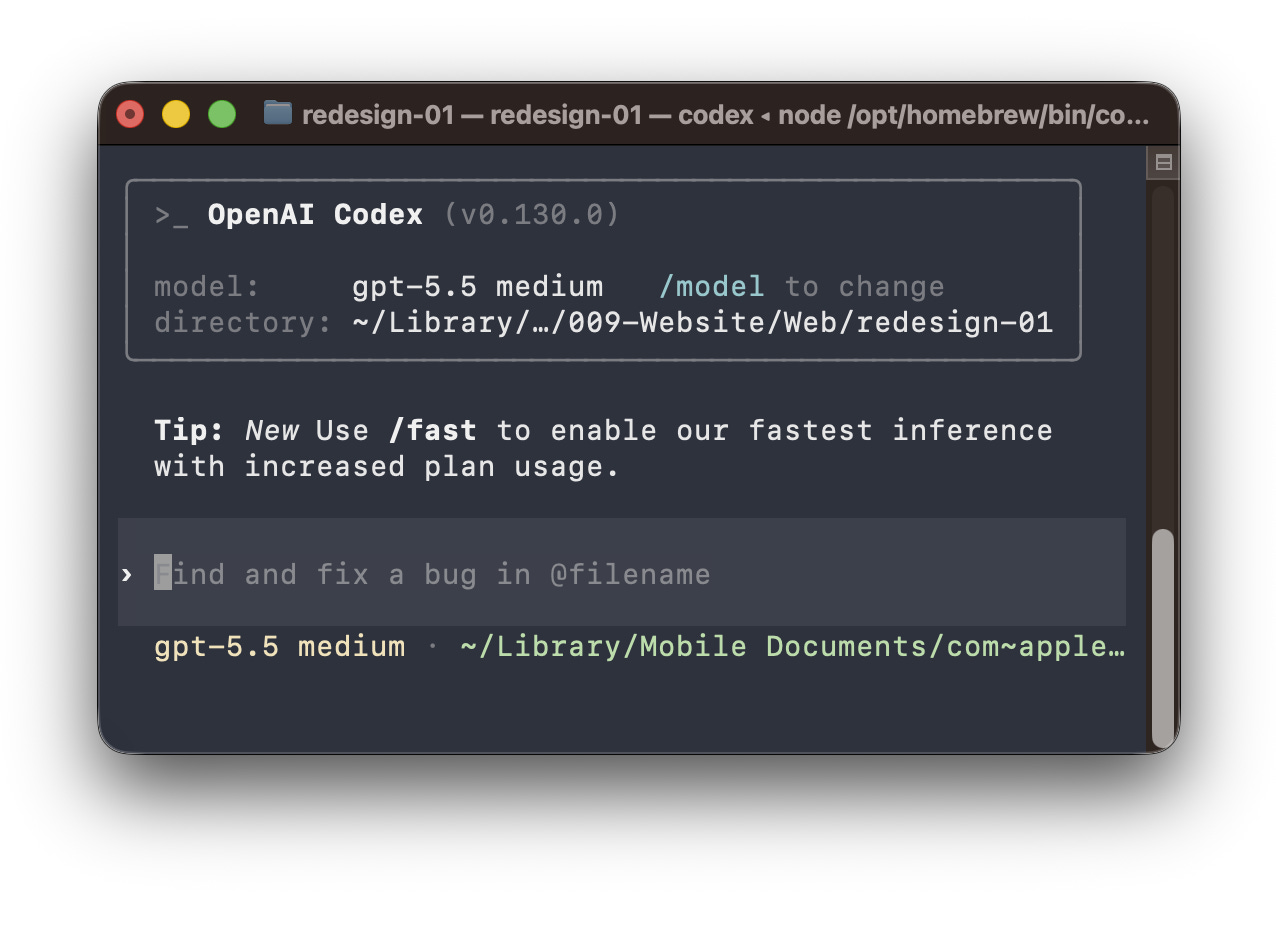
If you’re like most of our clients, you use AI as a chatbot, opening ChatGPT, Claude, or Gemini in a browser window and then asking it to brainstorm, summarize, rewrite, or explain something. Those are practical use cases, but they’re limiting because you could be using these AI platforms to do so much more. In other words, you could eliminate a lot of the mundane and tedious tasks that prevent you from spending time on strategic, bigger picture thinking.
What we’re talking about is the next shift: learning how to bring AI onto your computer so it can talk to and work directly with your files and workflows.
How do you do this? Well, before you start integrating AI into your workflow you need to first understand the Terminal.
The Terminal is a built-in application on your computer that acts like a little messenger between the software and your operating system. Traditionally, it was mostly used by developers and technical users to interact directly with files, folders, and system processes using code. Now, AI tools can connect to the Terminal and understand instructions in plain language. Meaning, you don’t have to be an engineer or super technical to communicate with the Terminal. By bringing them together, it’s referred to as AI-Terminal.
Why should you care? Because now you can have AI organize folders, rename files, analyze images, create spreadsheets, sort archives, summarize documents, and overall, manage digital clutter across your actual computer.
Terminal-based AI helps reduce the administrative time suck by turning AI from something that only answers questions into something that can assist with tasks and workflows. It may sound technical, but the core idea is simple: Browser AI talks with you, but Terminal-based AI can do work on your computer and work alongside you.
What is Terminal-based AI?
A simple example
Recently, I had a folder with 26 image files. They were named something like:
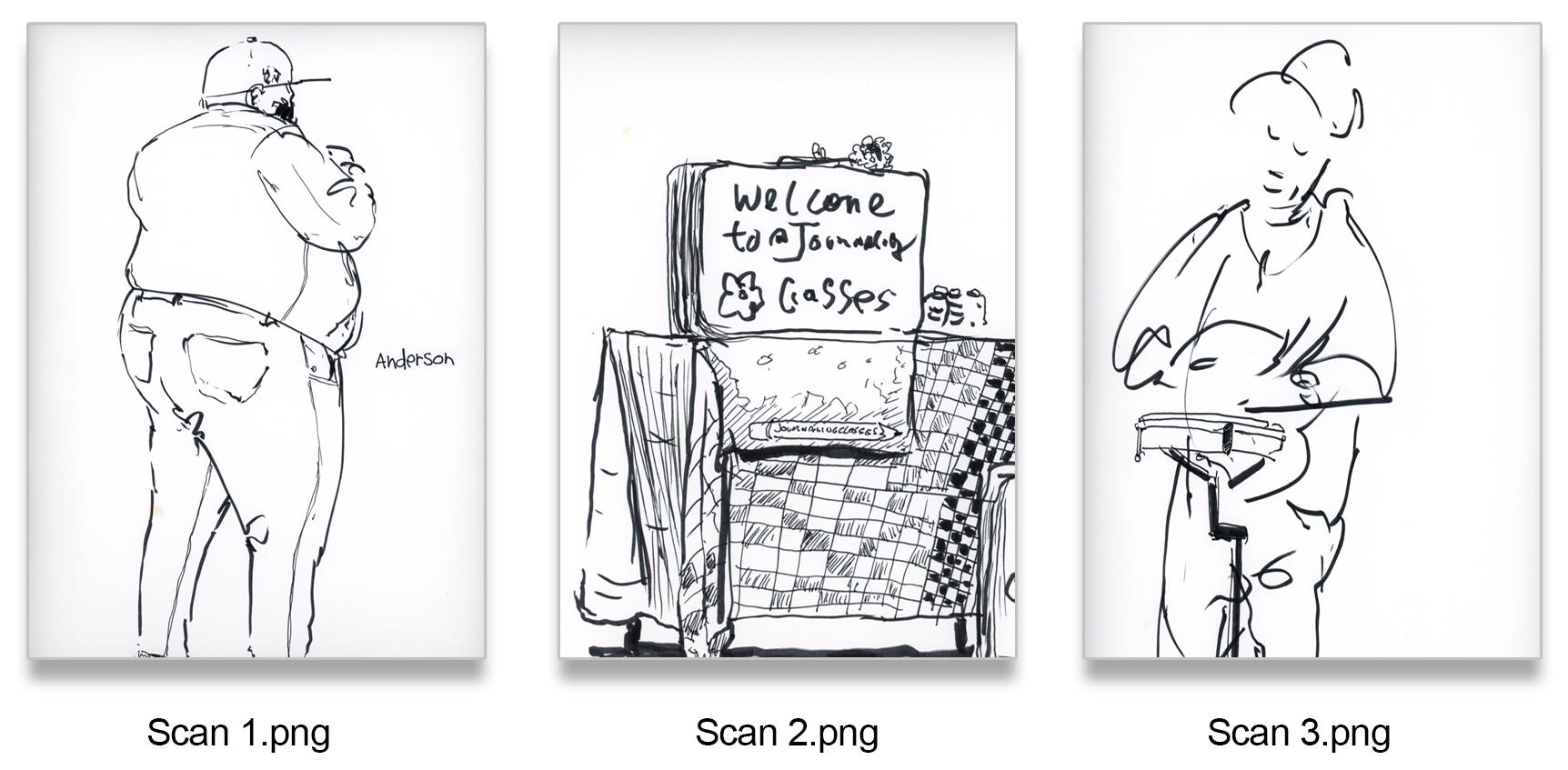
Not very helpful if I ever needed to quickly locate a specific image. In the past, without the AI-Terminal, if I were to organize these files, I would need to open every image, look at it, decide what it was, rename it while avoiding any typos, and maintain consistent naming.
Instead, I asked my Terminal-based AI assistant to look at the folder and rename the files based on what was included in each image. It also analyzed the images visually and proposed a naming plan. Although I did have to adjust the naming convention slightly after the first iteration, it was perfect after the second round. The end result was a clean folder with names like:
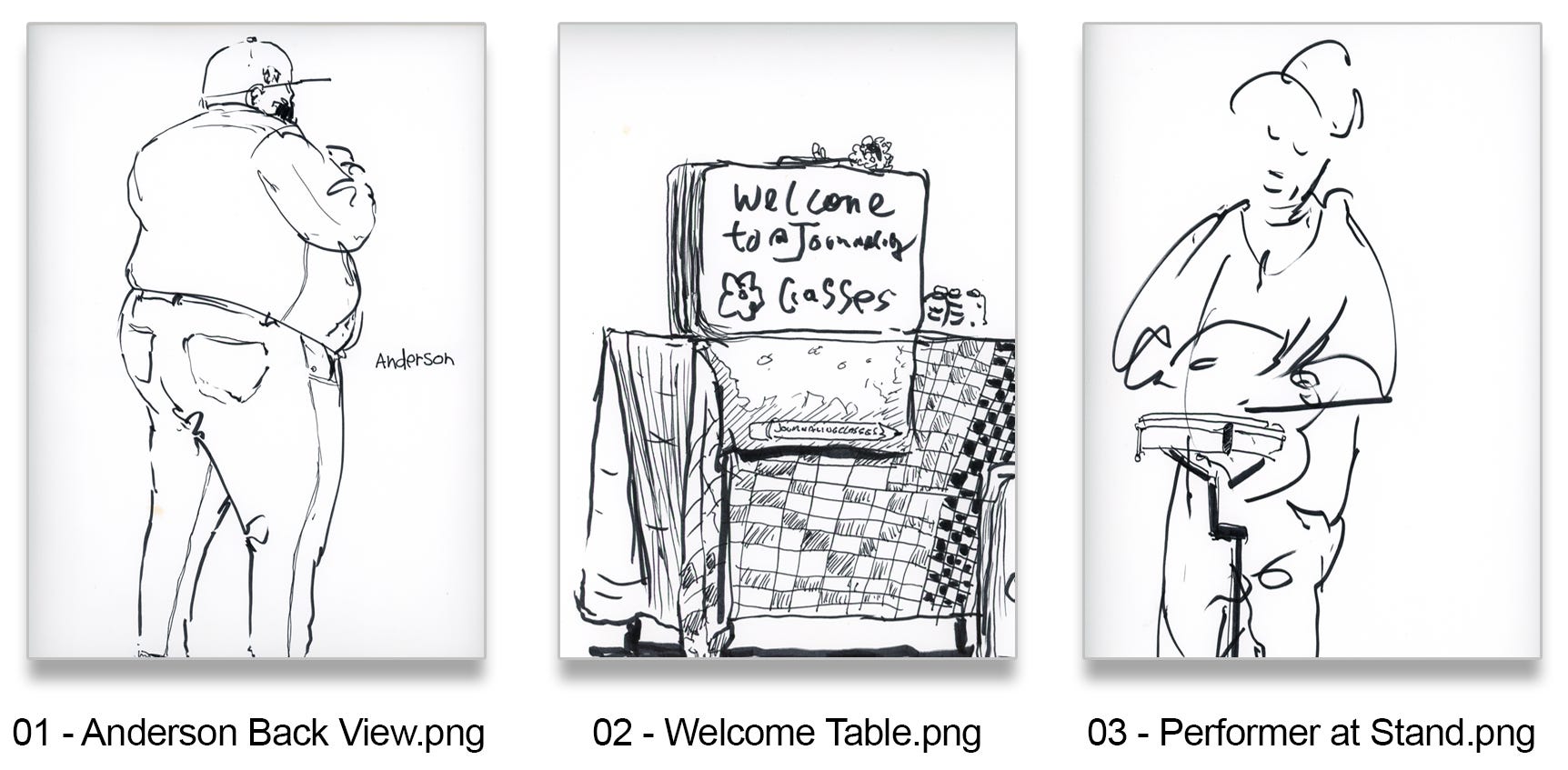
Now add a second assistant as the first is working
As the Terminal assistant was renaming the drawings, I then opened a second Terminal window and gave a new assistant a different task.
I asked it to create a spreadsheet (CSV file) from the same folder. It analyzed every image and generated a CSV catalog containing: file names, descriptions, file sizes, file types, image dimensions, orientation, dominant colors, tags, and created/modified dates.
This type of catalog would have normally taken me hours of manual work or required specialized software. But in this instance, it took me only 7 minutes.
If you’re interested in learning more about how to integrate AI onto your computer and to start using a Terminal AI-based assistant, we’re offering a 30 minute complimentary tutorial next week. We hope to see you there—details below!
BeMinded upcoming event
Virtual webinar: How AI Can Remove ALL Your Tedious Work Tasks A simple guide on integrating AI into your computer’s operating system
Date: Thursday, May 28, 2026
Time: 12:00 PM - 12:30 PM ET
Click image to sign up
